

Tags
The hierarchy tells you what a task serves. Tags help you choose work by something else, such as its nature: #coding, #admin, #reading or #outreach.
A task can have several tags. You can tag goals too.
Add a tag
Section titled “Add a tag”While writing a title, type # and start the name. Pick an existing tag from the list, or choose the option to create it. Use ↑ and ↓ to choose, then Enter or Tab to confirm.
You must choose from the list to make a tag. Pasting #coding, or closing the list without choosing, leaves ordinary text in the title.
You can also add tags in a task’s details. Names have no spaces; use a hyphen if needed, as in #deep-work.
Pin a tag for quick access
Section titled “Pin a tag for quick access”Open a tag’s pop-up by hovering over it. With the tag focused, Shift + F10 opens it too. On touch, press and hold the tag.
Turn on Pinned. The tag appears in the filter row, ready to select. On smaller screens, scroll the row or look in Filter for the rest.
Selecting a tag shows its open work. Done tasks don’t match a tag filter. Selecting several tags shows work carrying any of them, not only work carrying all of them.
Let a tag apply below
Section titled “Let a tag apply below”Turn on Applies to tasks below in the tag’s pop-up.
For example, tag Build a first version with #coding. With inheritance on, its tasks inherit #coding, including tasks you add later. They match the filter and count towards a coding limit without being tagged individually.
Applies to tasks below: on for #coding
- Draft the signup pageInherited #coding
- Build the demoInherited #coding
This setting belongs to the tag, not one branch. It applies below every place you’ve added that tag. If a branch contains mixed work, tag the narrower parts instead.
Moving a task changes what it inherits. To see where an inherited tag comes from, open the task’s details.
Tag several tasks
Section titled “Tag several tasks”On Board or Outline, use ⌘ / Ctrl-click to select tasks, or Shift-click for a range. Choose # Tag… in the selection bar.
On a phone, open Board actions or Outline actions, the ⋯ beside that view’s controls, and choose Tag tasks in view…. This isn’t the app’s top-right menu. Check the scope and filters first so you select the work you intend.
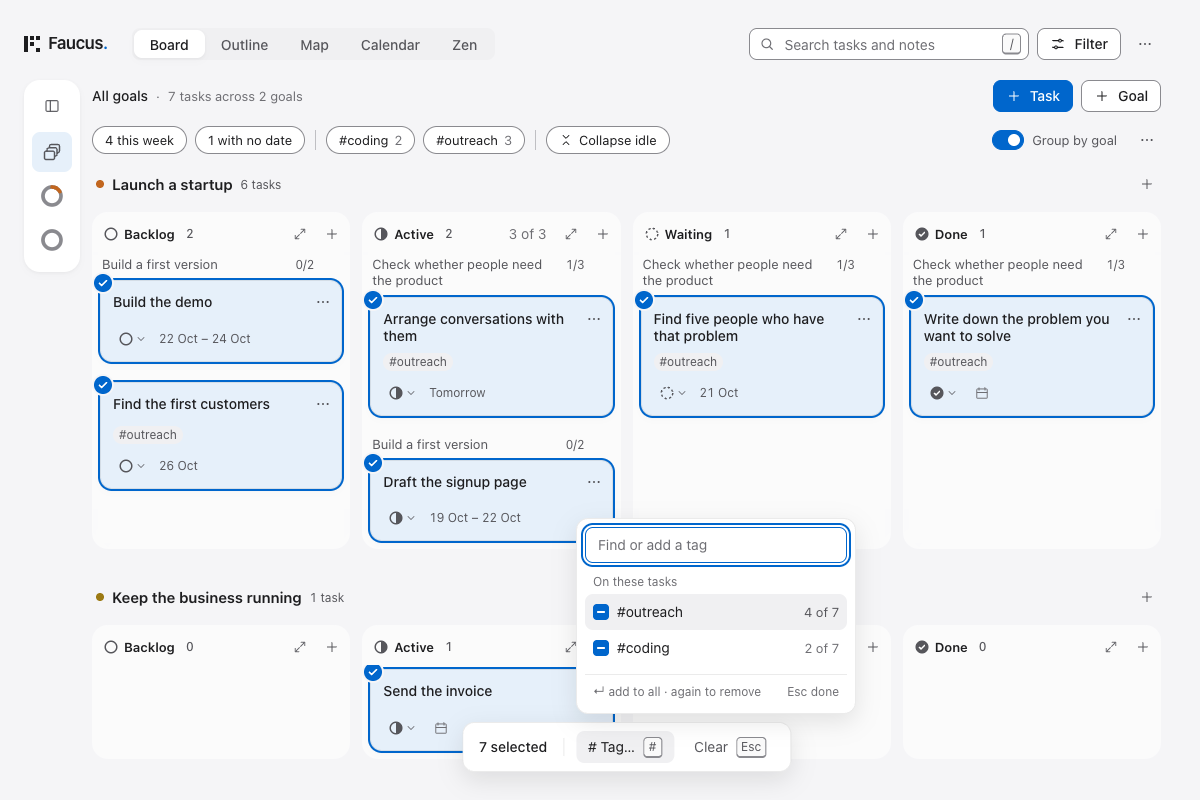 Open full size (new tab)
 Open full size (new tab)
Keep tags useful
Section titled “Keep tags useful”In the side panel, double-click a tag or press F2 to rename it. Renaming it to an existing tag merges them; the destination tag’s settings win.
Delete #tag…, at the bottom of its pop-up, removes it from tasks and clears its pin, inheritance, limit and Your day entry. Read the confirmation. Undo restores the change.
Optionally, Your day… in the app’s ⋯ menu lets you associate tags with parts of your day. A dot marks what’s usual now. It doesn’t filter or schedule anything for you.