

Write the plan
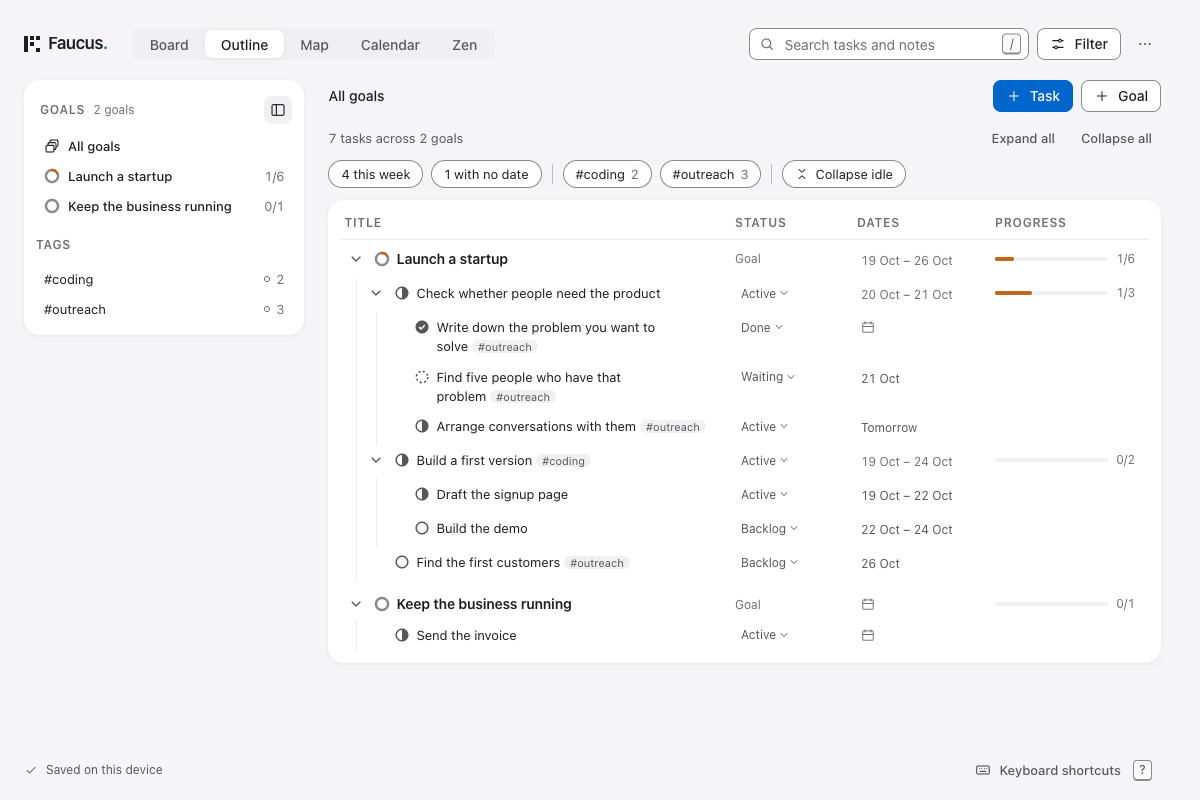
Use Outline when you want to think through a goal and write several tasks at once. The smaller outline beside the Board and Calendar is useful for adding or rearranging work without leaving those views.
 Open full size (new tab)
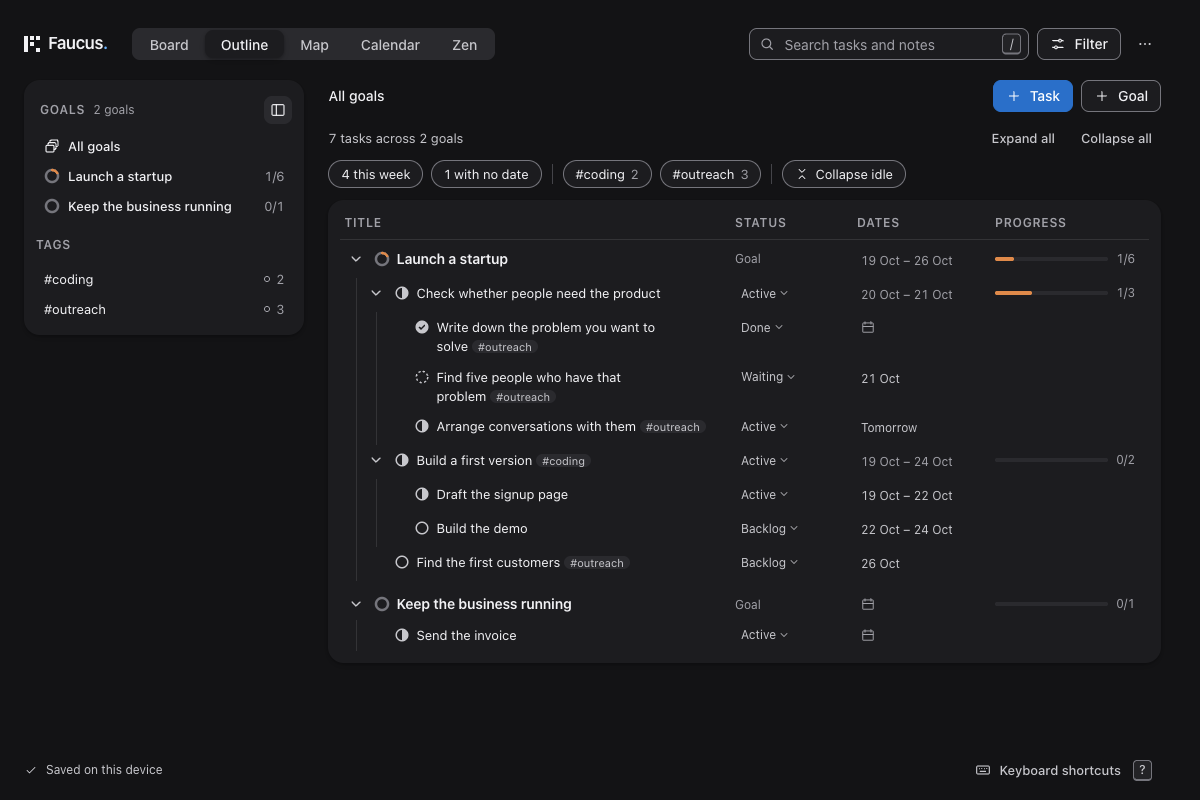 Open full size (new tab)
Using a phone or tablet? Follow the touch steps.
Add several tasks
Section titled “Add several tasks”Open Outline and select Launch a startup. Press Enter to add a task.
Type Check whether people need the product, then press Enter again. This saves the task and opens a field for another task at the same level.
Add Build a first version and Find the first customers the same way. Press Esc in the empty field to stop.
Break a task down
Section titled “Break a task down”Select Check whether people need the product and press Enter. In the new task field, press Tab to put it underneath that task.
Write Write down the problem you want to solve and press Enter. Continue with Find five people who have that problem and Arrange conversations with them.
While writing a new task:
| Key | What it does |
|---|---|
| Enter | Save and add another at the same level |
| Tab | Put the new task under the previous one |
| Shift + Tab | Move the new task one level out |
| ⌘ / Ctrl + Enter | Save and stop writing |
| Esc | Discard the current unsaved text and stop |
The tasks you’ve already saved stay in the plan.
Write with touch
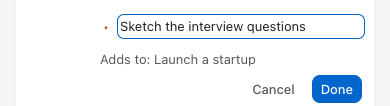
Section titled “Write with touch”- In Outline, tap your goal’s title, then Add task in the action bar at the bottom.
- Type a task and choose Done.
- To break that task down, tap its title, choose Add subtask, then write and choose Done again.
 Open full size (new tab)
 Open full size (new tab)
Change the structure
Section titled “Change the structure”Select a task and press F2 to rename it. Use Alt + ↑ or ↓ to move it among tasks with the same parent. Alt + → puts it under the previous task; Alt + ← moves it one level out.
You can also drag tasks, or open a task’s menu and choose Move to…. A task must stay under a goal or another task.
In the small outline beside the Board or Calendar, Enter opens details rather than adding a sibling. Use the task’s Add subtask menu command, or +, to start writing below it.
See the plan as a map
Section titled “See the plan as a map”Map shows the same hierarchy with connections between tasks. Use it if you find the shape easier to follow that way. On a selected task, Tab starts a child and Enter starts a sibling. Map isn’t offered on phones.