

Put work on the calendar
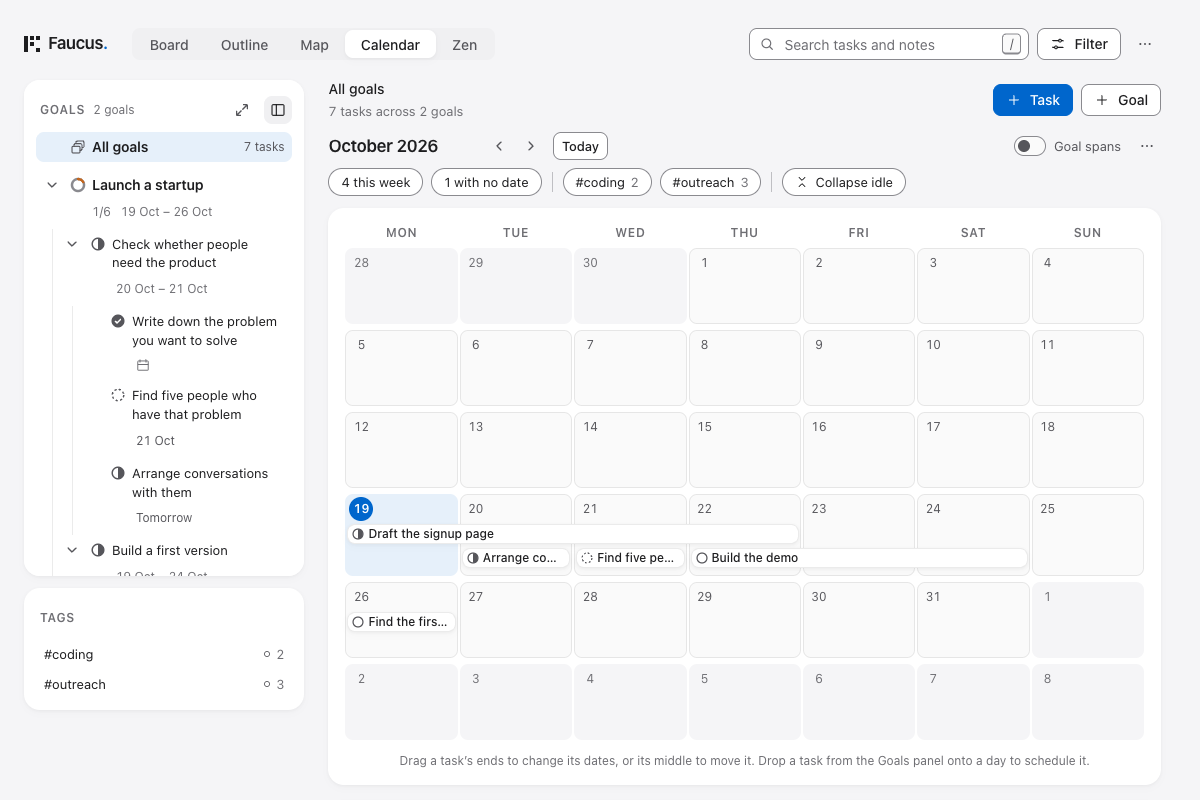
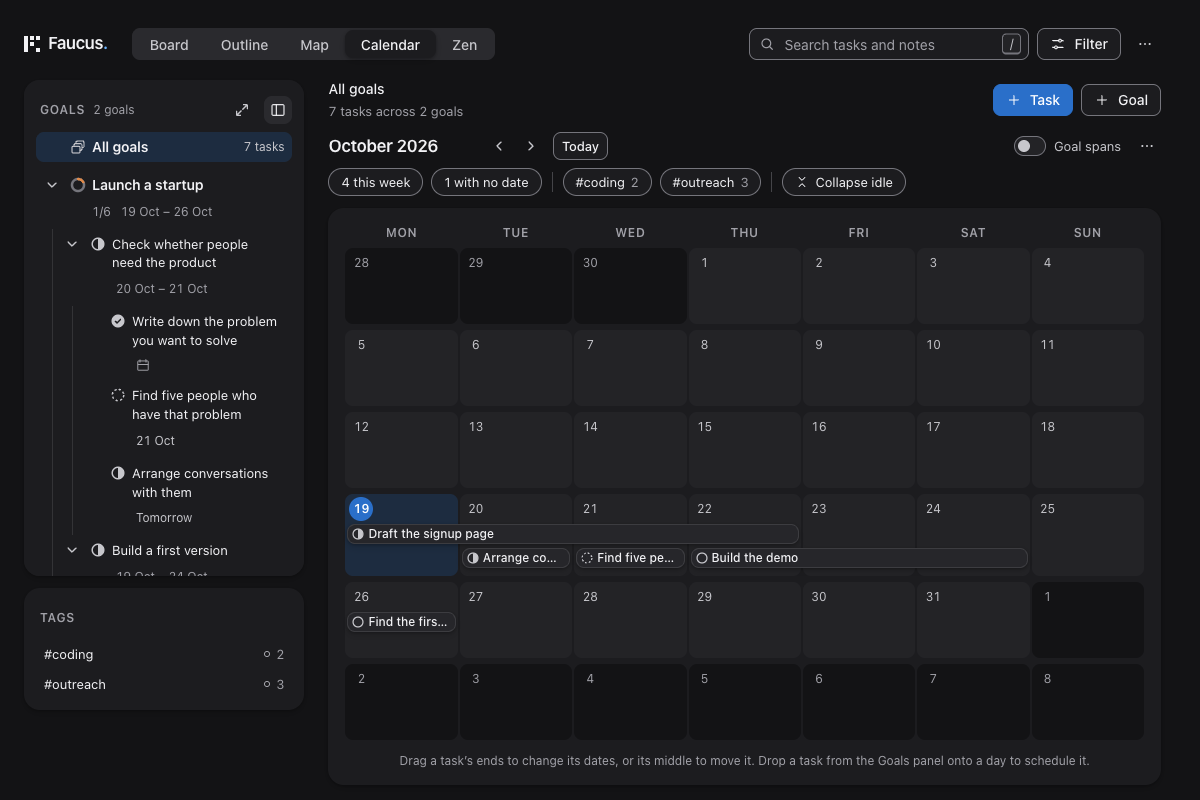
Use Calendar when a task needs a date or a span of days. It shows the same plan as the other views, not a separate list of appointments.
A due date places a task on one day. Add a start date as well to give it a range. These are dates, not appointments with start times or durations.
 Open full size (new tab)
 Open full size (new tab)
Schedule a task
Section titled “Schedule a task”On a wider screen, drag a task from the Goals panel onto a day in the month. Dropping it onto an existing bar also uses the day under the pointer.
Choose No date to find open work still to schedule. Where the side outline sits beside the month, that filter dims the already dated work in the outline while leaving the schedule visible as a place to drop tasks.
You can schedule without dragging: open the task’s details and set Due date, adding Start date if needed. This also works on a phone, where there’s no side outline.
Move or resize
Section titled “Move or resize”Drag the middle of a task’s bar to move its dates together. Drag either end to change the beginning or end of its range.
With the task’s bar focused:
| Keys | What changes |
|---|---|
| Alt + ← / → | Move by one day |
| Alt + ↑ / ↓ | Move by one week |
| Alt + Shift + ← / → | Change the due date by one day |
| Enter | Open details |
On a touch screen, hold a task briefly before dragging it. A normal swipe scrolls the page.
Read the month
Section titled “Read the month”Select a day to see its tasks in the day’s list. Use the month arrows to browse, and Today to return.
A goal or task can show a span derived from the dates below it. That summary isn’t a date you assigned to the parent. The Goal spans switch shows or hides the goals’ summary spans.
To change a task’s own dates, edit that task or move its own bar. A summary isn’t a command to reschedule everything underneath it.
If something seems missing, check your scope and filters. Undated tasks don’t appear on the month until you give them dates.