

Choose what to work on
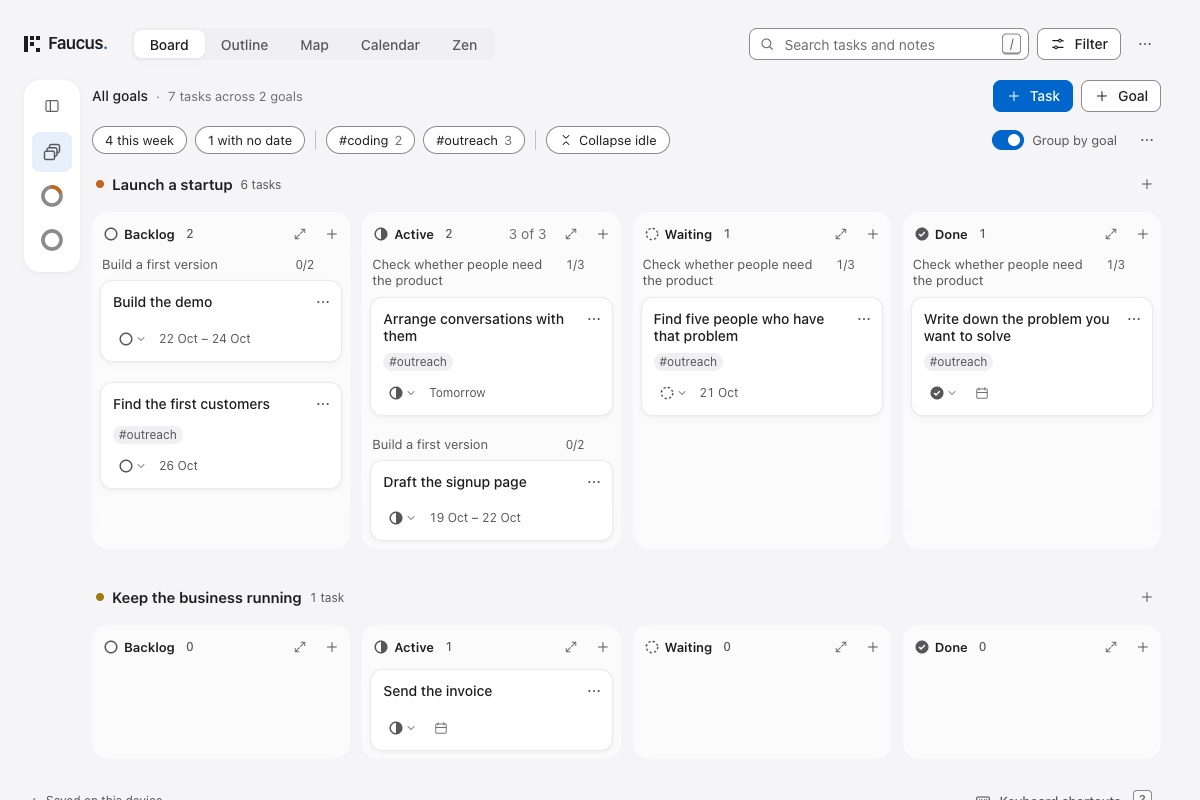
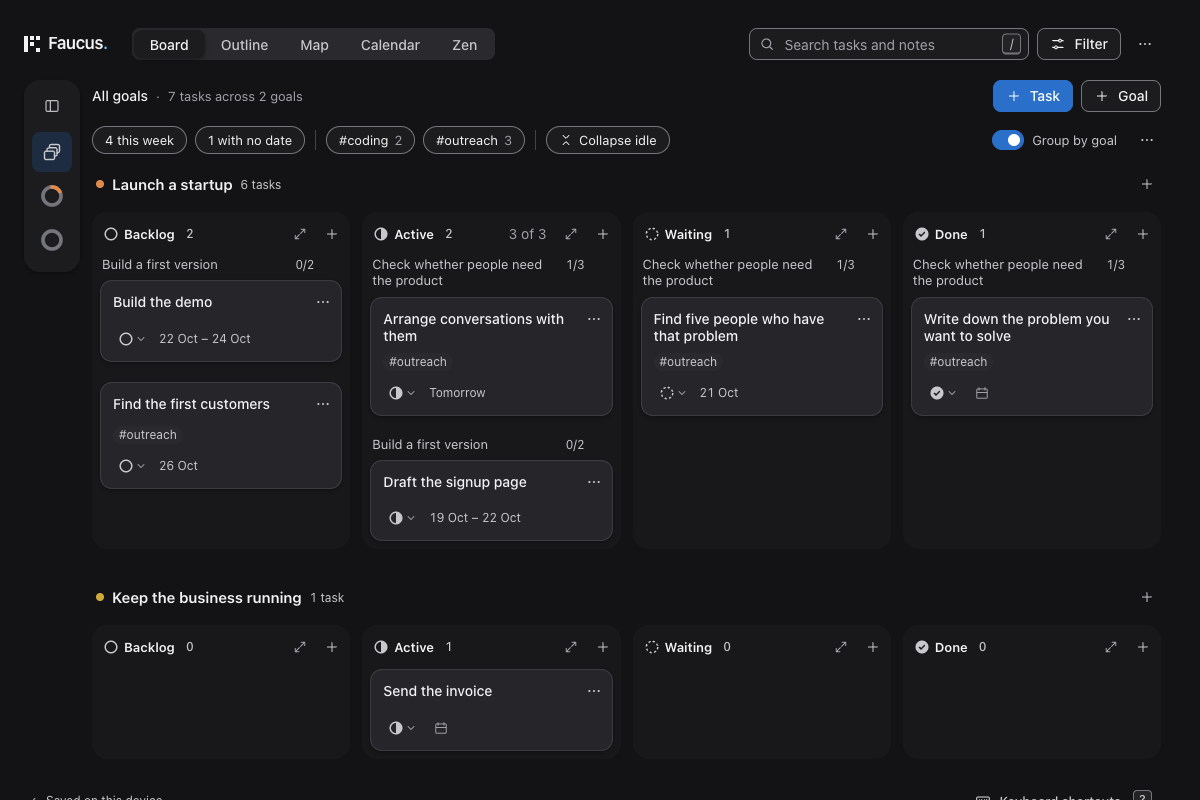
Board shows the same tasks as the Outline, arranged by status. Switching views doesn’t create a second plan.
The four statuses
Section titled “The four statuses”| Status | Use it for |
|---|---|
| Backlog | Work you haven’t started, or have deliberately put aside |
| Active | Work you’re currently giving attention to |
| Waiting | Work blocked on someone or something else |
| Done | Finished work |
 Open full size (new tab)
 Open full size (new tab)
Drag a task into a column to change its status. You can also use its status menu. With single-key shortcuts enabled, 1 sets Backlog, 2 Active, 3 Waiting and 4 Done.
Decide what comes first
Section titled “Decide what comes first”Reorder tasks within a column by dragging them, or select one and use Alt + ↑ or ↓.
Use the order to express what you want to tackle first. This doesn’t change what a task belongs to. To move it into another part of the plan, use Move to… or the Outline.
Expand a column
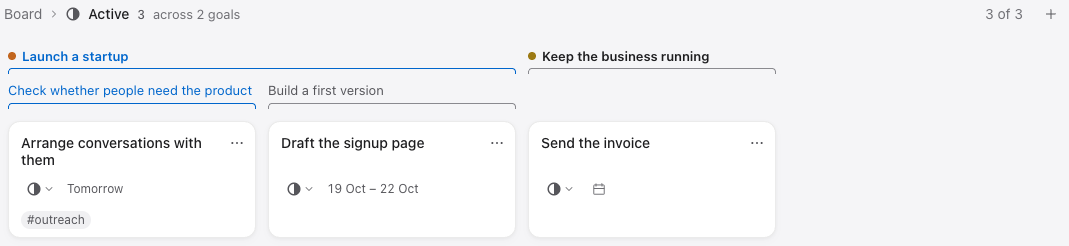
Section titled “Expand a column”Use the expand button in a column heading, or select a task and press E with single-key shortcuts on.
That status takes the full Board area. Tasks appear in a sideways row, grouped by their parents, with room for their notes and other details. Expand Backlog to compare upcoming work, or Active to concentrate on what you’ve started.
 Open full size (new tab)
 Open full size (new tab)
You can rearrange tasks within their family. This view doesn’t create a single priority order across unrelated families.
Press Esc or choose Board in the breadcrumb to return. Phones show status tabs instead of expanded columns.
Tasks with subtasks
Section titled “Tasks with subtasks”A task with subtasks reflects the work below it. It reads Active if any open work underneath is Active, Done when everything is finished, and Waiting when all remaining work is Waiting. Otherwise it reads Backlog.
Changing a whole branch affects the work inside it. Marking it Done finishes its open work. Other status changes leave finished tasks alone, unless you reopen a branch that was entirely finished.
Starting a branch can start several tasks. When that would exceed an Active limit, Faucus starts just its first task instead, provided there’s room.
Review in Zen
Section titled “Review in Zen”Zen gives you a written account of the plan: what’s active, what’s waiting, what finished recently and what dates are approaching. Open a task’s title to change its details.
Use it for a quick review when you don’t need to rearrange anything.